Skip to content

Cluster Access

In this page you will find information about how to connect to C3. You can do it either via SSH (CLI) or RDP (GUI), but you must be connected to eduroam or the UC3M VPN first.

Once your C3 access has been approved you will receive a welcome email with a temporary password. Make sure you log in through SSH the first time, as you will be prompted to change your password. You cannot log in via RDP with the temporary password.

Password Policy

All user passwords must follow this policy:

  • Must be at least 40 characters long.
  • Must include upper and lower-case characters, digits and special characters.
  • Must be renewed every 90 days.
  • You cannot reuse passwords.

Login Nodes

C3 is equipped with 2 login nodes.

The preferred way to access the cluster is through c3.uc3m.es, but you can also connect directly to login[02-03].c3.uc3m.es if available.

SSH

This is the main way to connect to C3. Open a terminal window and connect to C3 via SSH with your username like this:

ssh <user_name>@c3.uc3m.es
You can also use something like PuTTY to connect to C3 instead of running the ssh command directly.

We recommend you to generate a key pair on your local machine to avoid having to type in your password every time you log in.

# Generate the SSH private/public key pair
ssh-keygen -t ed25519 -C "$(whoami)@$(hostname)-$(date +'%d-%m-%Y')" -f ~/.ssh/id_ed25519

# Now copy the public key
cat ~/.ssh/id_ed25519.pub
# Generate the SSH private/public key pair
ssh-keygen -t ed25519 -C "$env:USERNAME@$env:COMPUTERNAME-$(Get-Date -Format 'dd-MM-yyyy')" -f "$env:USERPROFILE\.ssh\id_ed25519"

# Now copy the public key
type "$env:USERPROFILE\.ssh\id_ed25519.pub"
Your public key should look like this
ssh-ed25519 AAAAC3NzaC1lZDI1NTE5AAAAIG1IrqJzJwncJte06FkDJjG8wsjcNEXd1/jXOe6g+90M user@hostname-28-10-2025

Finally log into the cluster and paste your public key in your ~/.ssh/authorized_keys file:

nano ~/.ssh/authorized_keys
Now you should be able to log into C3 without a password.

RDP

All login nodes provide a graphical environment. You will need an RDP client to log in in this way. You can use whichever you prefer, but here are some recommendations:

  • Thincast Client: cross-platform
  • Remmina: Linux only
  • Remote Desktop Connection (mstsc.exe): Windows only, usually comes preinstalled

Install and launch your RDP client. We will use Thincast Client for this example. Just fill out the hostname and username fields, save your settings and connect.

Thincast RDP Client

You can adjust your display settings in the Display tab if you need to.

Expired Passwords

If you are trying to log in via RDP with an expired password, you might encounter issues. Remember that if you log in via SSH with an expired password, you will automatically be prompted to reset it.

Transfer files

If you need to transfer files from your computer to C3, there are many ways to do it. Here we will go over a few.

Open a terminal (bash/zsh on Linux/macOS, PowerShell on Windows) and run this command with your username:

sftp <user_name>@c3.uc3m.es

Now you have an SFTP shell from which you can upload and download files to and from the cluster
local_username@local_hostname:~$ sftp c3_username@c3.uc3m.es
Connected to c3.uc3m.es.
sftp> 
PS C:\Users\local_username> sftp c3_username@c3.uc3m.es
Connected to c3.uc3m.es.
sftp>

To upload a single file from your computer to the cluster:

put <local_file_path> <remote_file_path>

Example output
sftp> put /home/local_username/test/test_file1 /home/c3_username/
Uploading /home/local_username/test/test_file1 to /home/c3_username/test_file1
test_file1                                                                        100%    6     1.7KB/s   00:00    
sftp> put C:/Users/local_username/Documents/test/test_file1.txt /home/c3_username
Uploading C:/Users/local_username/Documents/test/test_file1.txt to /home/c3_username/test_file1.txt
test_file1.txt                                                                        100%    8     1.6KB/s   00:00

To upload an entire directory:

put -r <local_file_path> <remote_file_path>

Example output
sftp> put -r /home/local_username/test/test_dir1/ /home/c3_username/
Uploading /home/local_username/test/test_dir1/ to /home/c3_username/test_dir1
Entering /home/local_username/test/test_dir1/
test_file2                                                                        100%    7     1.7KB/s   00:00    
test_file3                                                                        100%    7     2.1KB/s   00:00    
sftp> put -r C:\Users\local_username\Documents\test\test_dir1 /home/c3_username
Uploading C:/Users/local_username/Documents/test/test_dir1/ to /home/c3_username/test_dir1
Entering C:/Users/local_username/Documents/test/test_dir1/
test_file2.txt                                                                        100%    8     3.9KB/s   00:00
test_file3.txt                                                                        100%    8     2.0KB/s   00:00

To download a single file from the cluster to your computer:

get <remote_file_path> <local_file_path>

Example output
sftp> get /home/c3_username/test_file4 /home/local_username/test/
Fetching /home/c3_username/test_file4 to /home/local_username/test/test_file4
test_file4                                                                        100%   14     2.4KB/s   00:00    
sftp> get /home/c3_username/test_file4 C:\Users\local_username\Documents\test
Fetching /home/c3_username/test_file4 to C:/Users/local_username/Documents/test/test_file4
test_file4                                                                            100%   16     1.7KB/s   00:00

To download an entire directory:

get -r <remote_file_path> <local_file_path>

Example output
sftp> get -r /home/c3_username/test_dir2/ /home/local_username/test/
Fetching /home/c3_username/test_dir2/ to /home/local_username/test/test_dir2
Retrieving /home/c3_username/test_dir2
test_file5                                                                        100%   16     3.1KB/s   00:00    
test_file6                                                                        100%   16     3.1KB/s   00:00    
test_file7                                                                        100%   16     3.1KB/s   00:00    
sftp> get -r /home/c3_username/test_dir2 C:/Users/local_username/Documents/test
Fetching /home/c3_username/test_dir2/ to C:/Users/local_username/Documents/test/test_dir2
Retrieving /home/c3_username/test_dir2
test_file5                                                                            100%   16     2.0KB/s   00:00
test_file6                                                                            100%   16     2.0KB/s   00:00
test_file7                                                                            100%   16     2.2KB/s   00:00

Open a terminal (bash/zsh on Linux/macOS, PowerShell on Windows).

To upload a single file from your computer to the cluster:

scp <local_file_path> <user_name>@c3.uc3m.es:<remote_file_path>

Example output
local_username@local_hostname:~$ scp /home/local_username/test/test_file1  c3_username@c3.uc3m.es:/home/c3_username/test
test_file1                                                                        100%    8     2.5KB/s   00:00    
PS C:\Users\local_username> scp C:\Users\local_username\Documents\test\test_file1.txt c3_username@c3.uc3m.es:/home/c3_username/test
test_file1.txt                                                                                          100%    8     1.3KB/s   00:00

To upload an entire directory:

scp -r <local_file_path> <user_name>@c3.uc3m.es:<remote_file_path>

Example output
local_username@local_hostname:~$ scp -r /home/local_username/test/test_dir1/  c3_username@c3.uc3m.es:/home/c3_username/test
test_file2                                                                        100%    8     2.1KB/s   00:00    
test_file3                                                                        100%    8     2.7KB/s   00:00    
PS C:\Users\local_username> scp -r C:\Users\local_username\Documents\test\test_dir1\ c3_username@c3.uc3m.es:/home/c3_username/test
test_file2.txt                                                                                          100%    8     1.6KB/s   00:00
test_file3.txt                                                                                          100%    8     1.6KB/s   00:00

To download a single file from the cluster to your computer:

scp <user_name>@c3.uc3m.es:<remote_file_path> <local_file_path>

Example output
local_username@local_hostname:~$ scp c3_username@c3.uc3m.es:/home/c3_username/test/test_file4 /home/local_username/test
test_file4                                                                        100%   16     3.0KB/s   00:00    
PS C:\Users\local_username> scp c3_username@c3.uc3m.es:/home/c3_username/test/test_file4 C:/Users/local_username/Documents/test/
test_file4                                                                                              100%   16     2.0KB/s   00:00

To download an entire directory:

scp -r <user_name>@c3.uc3m.es:<remote_file_path> <local_file_path>

Example output
local_username@local_hostname:~$ scp -r c3_username@c3.uc3m.es:/home/c3_username/test/test_dir2 /home/local_username/test
test_file5                                                                        100%   16     2.9KB/s   00:00    
test_file6                                                                        100%   16     2.9KB/s   00:00    
test_file7                                                                        100%   16     3.0KB/s   00:00    
PS C:\Users\local_username> scp -r c3_username@c3.uc3m.es:/home/c3_username/test/test_dir2 C:/Users/local_username/Documents/test/
test_file5                                                                                              100%   16     1.7KB/s   00:00
test_file6                                                                                              100%   16     2.0KB/s   00:00
test_file7                                                                                              100%   16     2.0KB/s   00:00

If you prefer to use a GUI you can try WinSCP. Once you install it on your local Windows machine launch it and you will see a login window like this. Fill out the Host name and User name fields. WinSCP Login Window
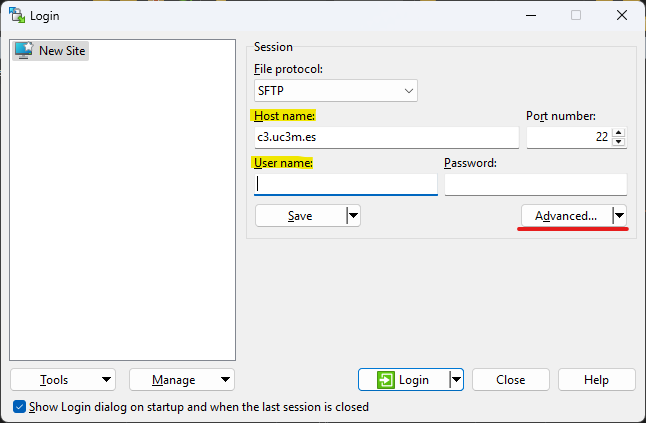
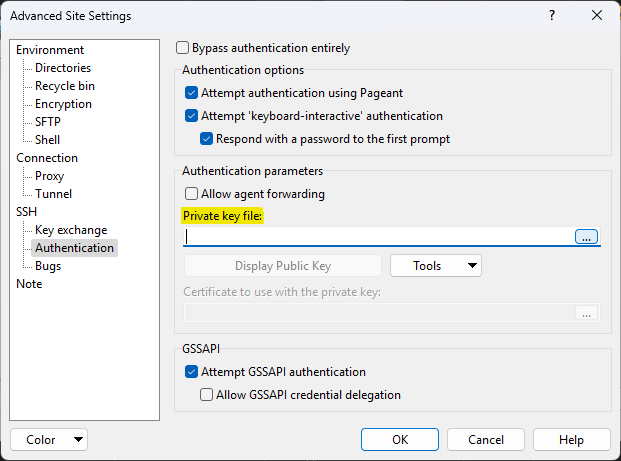
If you wish to log in with SSH keys instead of your password, click on the Advanced... button. Now go to SSH/Authentication and under Authentication parameters select your Private key file. WinSCP Advanced Settings Window 1
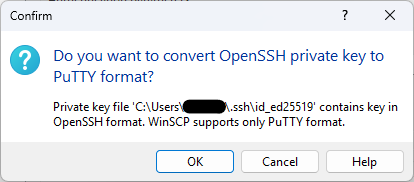
You will need a PuTTY formatted key file. If you select your normal private key file you will be asked to convert it. This will create a new key file in PuTTY format and select it. WinSCP PuTTY Format Window
WinSCP Advanced Settings Window 2

Next click OK and save your settings by clicking the Save button. Now you can log in and start transferring files.