Parallel Computing with MATLAB on the C3 HPC Cluster
This document provides the steps to configure MATLAB to submit jobs to the C3 cluster, retrieve results, and debug errors.
Compatible MATLAB versions
R2025a
R2025b
Initial Configuration
Running MATLAB on the HPC Cluster
This setup is intended for job submission when you are logged directly into the cluster, either through a command-line or graphical interface. This process needs to be done once per cluster.
After logging into the cluster, start MATLAB. On the Home tab, click Parallel > Discover Clusters… to discover the profile.
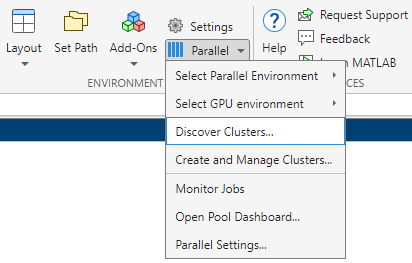
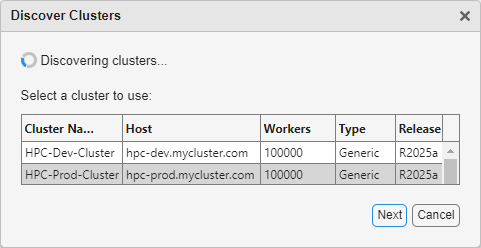
Follow the prompts to create a new cluster profile. Jobs will run across multiple nodes on the cluster rather than on the host machine.
Alternate
After logging into the cluster, start MATLAB. Call configCluster to create a new cluster profile.
Jobs will run across multiple nodes on the cluster rather than on the host machine.
Running MATLAB on the Desktop
This setup is intended for job submission when MATLAB is installed on your machine and jobs are run remotely on the cluster. You can download MATLAB here. This setup needs to be done once per cluster, per version of MATLAB installed on your machine.
Start MATLAB and run userpath
Download the Cluster MATLAB support package from here. The contents of the ZIP file should be extracted into the folder returned by the call to userpath.
Create a new cluster profile
Submission to the cluster requires SSH credentials. You will be prompted for username and password or identity file (private key). The username and location of the private key will be stored in MATLAB for future sessions.
Jobs will now run on the cluster rather than on the local machine.
NOTE: To run jobs on the local machine instead of the cluster, use the Process profile.
Configuring Jobs
Prior to submitting the job, various scheduler flags can be assigned, such as queue, e-mail, walltime, etc. [Only AccountName is required.]
% Get a handle to the cluster
c = parcluster;

% REQUIRED

% Specify an account
c.AdditionalProperties.AccountName = 'account-name';

% OPTIONAL

% Specify a constraint
c.AdditionalProperties.Constraint = 'feature-name';

% Request email notification of job status
c.AdditionalProperties.EmailAddress = 'user-id@uc3m.es';

% Specify number of GPUs (default: 0)
c.AdditionalProperties.GPUsPerNode = 1;

% Specify a particular GPU card
c.AdditionalProperties.GPUCard = 'gpu-card';

% Specify memory to use, per core (default: 4GB)
c.AdditionalProperties.MemPerCPU = '6GB';

% Specify the partition
c.AdditionalProperties.Partition = 'partition-name';

% Specify cores per node
c.AdditionalProperties.ProcsPerNode = 4;

% Set node exclusivity (default: false)
c.AdditionalProperties.RequireExclusiveNode = true;

% Specify a reservation
c.AdditionalProperties.Reservation = 'reservation-name';

% Specify the wall time (e.g., 1 day, 5 hours, 30 minutes)
c.AdditionalProperties.WallTime = '1-05:30';
To persist changes made to AdditionalProperties between MATLAB sessions, save the profile
To see the values of the current configuration options, display AdditionalProperties.
Unset a value when no longer needed.
% Turn off email notifications
c.AdditionalProperties.EmailAddress = '';

% Don't request an entire node
c.AdditionalProperties.RequireExclusiveNode = false;
Interactive Jobs - MATLAB on the HPC Cluster
Running MATLAB directly on the HPC Cluster
These workflows can only run when logged in directly on the cluster. They will not work when submitting jobs remotely from your desktop.
To run an interactive pool job on the cluster, continue to use parpool as before.
% Get a handle to the cluster
c = parcluster;

% Open a pool of 64 workers on the cluster
pool = c.parpool(64);
Rather than running a local pool on the host machine, the pool can now run across multiple nodes on the cluster.
Delete the pool when it’s no longer needed.
Independent Batch Job - MATLAB on the HPC Cluster or Desktop
Use the batch command to submit asynchronous jobs to the cluster. The batch command will return a job object which is used to access the output of the submitted job. See the MATLAB documentation for more help on batch.
% Get a handle to the cluster
c = parcluster;

% Submit job to query where MATLAB is running on the cluster
job = c.batch(@pwd, 1, {}, 'CurrentFolder', '.');

% Query job for state
job.State

% If job is finished, fetch the results
job.fetchOutputs{1}

% Delete the job after results are no longer needed
job.delete
To retrieve a list of running or completed jobs, call parcluster to return the cluster object. The cluster object stores an array of jobs that are listed as queued, running, finished, or failed. Retrieve and view the list of jobs as shown below.
Once the job has been selected, fetch the results as previously done.
fetchOutputs is used to retrieve function output arguments; if calling batch with a script, use load instead. Data that has been written to disk on the cluster needs to be retrieved directly from the file system (e.g., via sftp).
% Fetch all results from the second job in the list
job2.fetchOutputs{:}

% Alternate: Load results if job was a script instead of a function
job2.load
Parallel Batch Job - MATLAB on the HPC Cluster or Desktop
The batch command can also support parallel workflows. Let’s use the following example for a parallel job, which you should save separately as parallel_example.m.
function [sim_t, A] = parallel_example(iter)

if nargin==0
    iter = 8;
end

disp('Start sim')

t0 = tic;
parfor idx = 1:iter
    A(idx) = idx;
    pause(2)
    idx
end
sim_t = toc(t0);

disp('Sim completed')

save RESULTS A

end
This time when using the batch command, also specify a Pool argument.
% Get a handle to the cluster
c = parcluster;

% Submit a batch pool job using 4 workers for 16 simulations
job = c.batch(@parallel_example, 1, {16}, 'CurrentFolder','.', 'Pool', 4);

% View current job status
job.State

% Fetch the results after a finished state is retrieved
job.fetchOutputs{1}
ans =
    8.8872
The job ran in 8.89 seconds using four workers. Note that these jobs will always request N+1 CPU cores, since one worker is required to manage the batch job and pool of workers. For example, a job that needs eight workers will request nine CPU cores.
Run the same simulation again but increase the Pool size. This time, to retrieve the results later, keep track of the job ID.
NOTE: For some applications, there will be a diminishing return when allocating too many workers, as the overhead may exceed computation time.
% Get a handle to the cluster
c = parcluster;

% Submit a batch pool job using 8 workers for 16 simulations
job = c.batch(@parallel_example, 1, {16}, 'CurrentFolder','.', 'Pool', 8);

% Get the job ID
id = job.ID
id =
    4

% Clear job from workspace (as though MATLAB exited)
clear job
With a handle to the cluster, the findJob method searches for the job with the specified job ID.
% Get a handle to the cluster
c = parcluster;

% Find the old job
job = c.findJob('ID', 4);

% Retrieve the state of the job
job.State
ans =
    finished

% Fetch the results
job.fetchOutputs{1}
ans =
    4.7270
The job now runs in 4.73 seconds using eight workers. Run code with different number of workers to determine the ideal number to use.
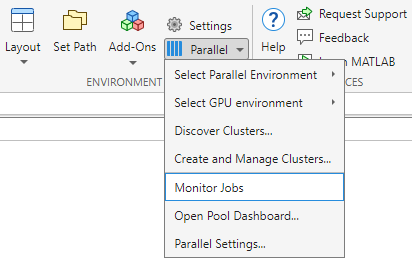
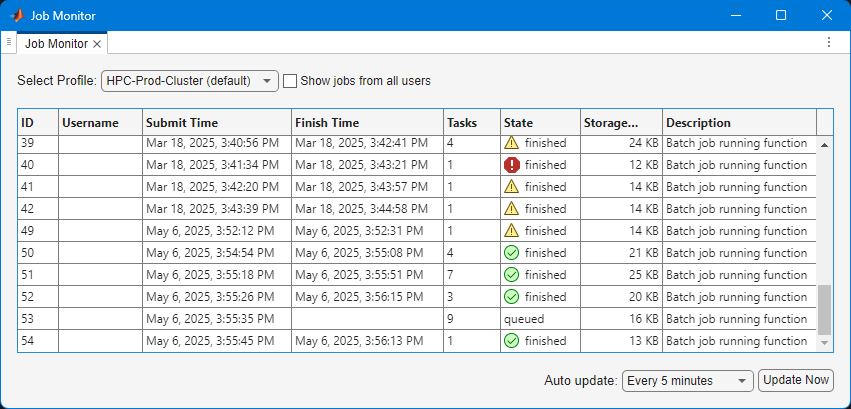
Alternatively, to retrieve job results via a graphical user interface, use the Job Monitor (Parallel > Monitor Jobs).
Debugging
If a serial job produces an error, call the getDebugLog method to view the error log file.
When submitting an independent job, specify the task.
For Pool jobs, only specify the job object.
When troubleshooting a job, the cluster admin may request the scheduler ID of the job. This can be derived by calling getTaskSchedulerIDs.
Helper Functions
| Function |
Description |
Notes |
|---|---|---|
| clusterFeatures |
Lists cluster features/constraints |
|
| clusterGpuCards |
Lists cluster GPU cards |
|
| clusterPartitionNames |
Lists cluster partition/queue names |
|
| disableArchiving |
Modifies file archiving to resolve file mirroring issues |
Applicable only to Desktop |
| fixConnection |
Reestablishes cluster connection (e.g., after reconnection of VPN) |
Applicable only to Desktop |
| willRun |
Explains why job is queued |
To Learn More
To learn more about the MATLAB Parallel Computing Toolbox, check out these resources:
- Parallel Computing Overview
- Parallel Computing Documentation
- Parallel Computing Coding Examples
- Parallel Computing Tutorials
- Parallel Computing Videos
- Parallel Computing Webinars
- Demo Script
- MATLAB and Simulink Access for UC3M
- High Performance Computing with MATLAB (slides)